カテゴリー: Raspberry pi
CATEGORY ARCHIVE
サーバー変更してletsencryptを引っ越しました。
raspberry piで組んでいたWordPressのサーバーを変更しましたので、その際の備忘録です。
旧環境と新環境
旧環境: raspberry pi 3 B+ + raspbean(wheezy) + apache
参考にしたサイト
方針やコマンド等は下記を参考にさせていただいた。 http://www.ubuntu-perl-web.com/blog/20200619081050.html https://blog.fileshelfplus.com/vps/280
参考にさせていただいたサイトによると、/etc/letsencrypt を旧環境から新環境にそのまま移せばよさそうだったので、その様にした。
旧環境での準備(/etc/letsencryptを固める)
sudo tar cfv letsencrypt.tar.gz /etc/letsencrypt

固めたファイルは新環境に移しておく
新環境でのletsencryptの準備
sudo apt install certbot
sudo apt install python-certbot-apache
/etc/letsencryptの展開
sudo tar xfv letsencrypt.tar.gzSSLの有効化
有効化は下記サイトを参考にした
https://qiita.com/HO_Pollyanna/items/aee45b25e2318d39157b

sudo apt install certbot
sudo apt install python-certbot-apache
confファイルの調整
sudo nano /etc/apache2/sites-enabled/default-ssl.conf
1.Document rootの調整
    <VirtualHost _default_:443>
            ServerAdmin webmaster@localhost
            DocumentRoot /var/www/html
2. pemファイルの指定(SSLEngine on の後ろに追加:sample.comの部分を書き換える)
SSLCertificateFile      /etc/letsencrypt/live/sample.com/fullchain.pem
SSLCertificateKeyFile /etc/letsencrypt/live/sample.com/privkey.pem
SSLCertificateChainFile /etc/letsencrypt/live/sample.com/chain.pem
apache再起動
sudo systemctl restart apache2
投稿ナビゲーション
PHP version up from PHP7.3 to PHP7.4 by WordPress request
WordPressの管理画面からPHPをPHP7.4へバージョンアップしろと怒られたので、PHPをPHP7.3からPHP7.4へ更新したのでその記録です。OSはRaspberry OS、ブラウザはApacheです。
環境
Step1: PHP更新用のリポジトリーを登録する
どのリポジトリーが良いのかわからなかったけど、https://emc-craft.xyz/raspberrypi/php74-inst/ を参考にしてpackages.sury.org を登録した。
sudo wget -O /etc/apt/trusted.gpg.d/php.gpg https://packages.sury.org/php/apt.gpg
echo "deb https://packages.sury.org/php/ buster main" | sudo tee /etc/apt/sources.list.d/php.list
sudo apt update
Step2: PHPを更新する
PHP7.3の時は、php-mbstringでインストールしたが今回それで行うとphp8.0-mbstringがインストールされ、まだダメとWordPressに怒られる。従って、php7.4-mbstringと指定すること。
sudo apt remove php*
sudo apt install php7.4
sudo apt install php7.4-zip php7.4-mysql php7.4-xml php7.4-gd  php7.4-curl
sudo apt install php7.4-mbstring
Step3: Apache2の設定を更新する
これを行っていないと、WordPressからPHP7.3だと怒られる。
sudo a2dismod php7.3
sudo a2enmod php7.4
Step4: php.iniを再設定する
php.iniの設定値は、https://www.javadrive.jp/php/install/index8.html のサイトに従った。
sudo nano  /etc/php/7.4/apache2/php.ini

下記を設定
mbstring.language = Japanese
mbstring.internal_encoding = UTF-8
mbstring.http_input = pass
mbstring.http_output = pass
mbstring.encoding_translation = Off
mbstring.detect_order = UTF-8,SJIS,EUC-JP,JIS,ASCII
mbstring.substitute_character = none
mbstring.func_overload = 0
mbstring.strict_detection = Off
Step5: Apacheを再起動する
sudo systemctl restart apache2
投稿ナビゲーション
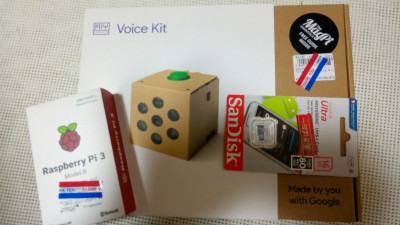
Voice3 kitを購入しセットアップした。
なお、マニュアルと違う点が以下あり
1.sudo apt install at-spi2-core が必要だった
あと、英語で話してもなかなか認識してくれない
投稿ナビゲーション
ダウンロードしたdebパッケージをUbuntu/Debianでインストールするツール。
sudo apt-get install gdebi
使用方法
sudo gdebi xxxxx.deb
投稿ナビゲーション
リモートデスクトップでMathematicaが立ち上がらなかった。下記のURLにあった解決策を実行したら立ち上がった。https://www.raspberrypi.org/forums/viewtopic.php?f=94&t=131051
――-solution ――
投稿ナビゲーション
There were many ufw block logs in syslog, ufw.log and messages under /var/log/
Work around:
Another garbage was like as
Work around:
Comment out of rear part such as ;mail. ;\.=debug; .=info;\.=notice; .=warn |/dev/xconsole
then reboot
投稿ナビゲーション